

Kabus 22: Fix PC Issues and Optimize Performance for a smooth Experience
Kabus 22 is a complex PC game that often requires troubleshooting to ensure smooth performance. Whether you're dealing with video playback errors, main menu freezes, or save file management issues, this guide provides actionable solutions to fix PC problems and optimize your gaming experience.
By addressing these common challenges, you can enjoy the game without interruptions.
Fixing Video Playback Issues: Kabus 22 Fix Issues with Codec Adjustments
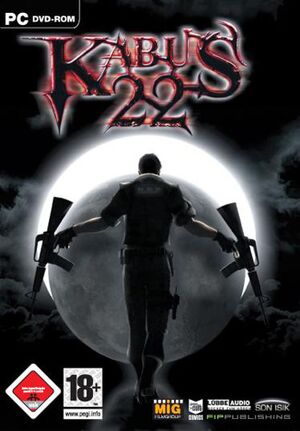
One of the common Kabus 22 fix issues is the failure to play in-game videos. These videos are encoded using the Indeo 5 codec. The Indeo 5 codec doesn’t work well with operating systems like Windows 10 and Windows 11.
Because of this players often see playback errors. Skip cutscenes entirely. To fix this players need to adjust their codec settings or use codecs that are compatible.
On systems like Windows 7 or earlier installing the K-Lite Codec Pack or LAV Codecs is very important. These codecs help the game play videos correctly.. On newer operating systems those same codecs can cause conflicts, with the built-in media frameworks.
A better solution is to disable DirectShow codecs. Alternatively players can override the codec settings when launching the game. This is done by running the file K22.exe with specific launch options.
Also the OGG DirectShow filters that come with the game are outdated. These filters should not be used on systems running Vista or later. Using them can lead to instability and crashes.
So it’s best to avoid them.
Resolving Main Menu Hangs: Configuration File and System Resource Management

Players often have problems with the game freezing or lagging when they’re in the menu. This happens especially when they start a game or when they’re leaving the game. The problem is usually connected to the games configuration file called K22.ini and how the system uses its resources.
The encrypted configuration file can cause problems with graphics drivers or, with anti-virus software. To fix this make sure the games folder is not being scanned in time by the anti-virus program. Also check that your computer has the requirements: a dual-core CPU, 4GB of RAM and a GPU that works with DirectX 9.
If the game still runs slowly try turning down the game settings or closing programs while playing.
Advanced Kabus 22 Fix Issues: Troubleshooting System Conflicts
Some users might have problems because old parts of the game don’t work well with new updates to the system. For example the Media Foundation part of Windows 10 can have problems with DirectShow codecs, which leads to strange results. To fix this try running the game in compatibility mode for Windows XP SP3 or turn off Windows Defender for a time (make sure to do this only when testing).
Also check that all updates to the system are installed because the latest fixes often help with problems, between software and new systems.
Optimizing Performance: Save File Management and Widescreen Support
Kabus 22s save files are stored in sav folders like kayit0.sav and kayit13.sav. These files can take up a lot of space on the drive as time goes by. To save space delete the saves that are not needed or use tools made by companies to organize the folders.
Widescreen mode is on by default.. It might need changes in the K22.ini file to stop the picture from looking stretched. People who have 16:9 or 21:9 screens should check the resolution settings to make sure everything works right.
Also making sure the operating system and the drivers are up, to date can help fix problems that might cause the game to stop working. This can make the game run better and reduce crashes.
✅ Verdict
Kabus 22’s performance issues can be resolved through codec adjustments, configuration file management, and system optimization. By following these steps, players can enjoy a stable and enhanced gaming experience.
 Tafa Mus
 Jakeyy