


Project Gorgon is a unique game that can feel clunky at first. For the best performance and experience, there are a few quick settings changes you must make to improve the overall feel.
In this guide, you will learn the best settings for performance and controls in Project Gorgon (2026).
Best Settings Guide for Performance and Controls
Graphics and Performance Settings
To improve the graphics and performance of your game, change the following settings in the Graphics tab:
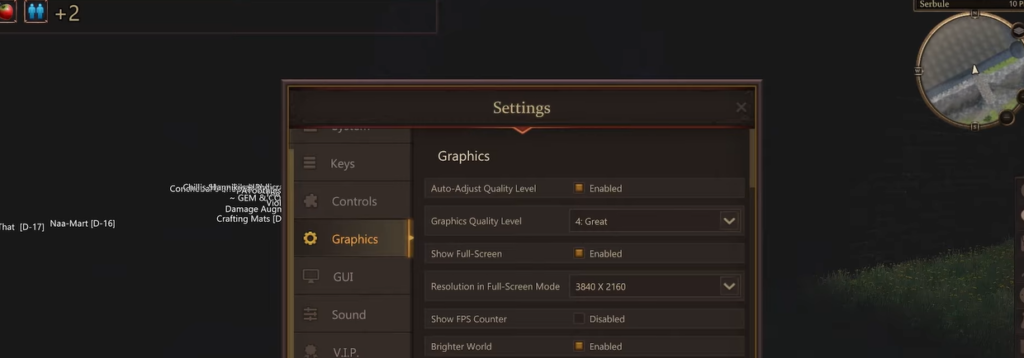
- Fullscreen: Enable for better performance and stability.
- Shadow Distance: Set this to 0.
- Brighter World: Enable if nights and interiors feel too dark in your game.
- Field of View: Set to 90 for better visibility without distortion.
For Performance boosts, select the Specials tab and add these commands:

- MaxActiveLoads 10 – to reduce asset loading stutter
- PlayerAnimationCutoff 20 – to stop animating distant players
- ForceCheapShadows – to lower shadow complexity
Check out our latest guide on Best Early Combat Skills to Unlock in Project Gorgon (2026 Guide)!
Controls
To make your movements smoother, you can enable or disable the following options:

- Auto Move to Interact and Attack – enable for smoother combat
- Click Ground Move – Disable to avoid accidental movement when you click the screen
Interface

On the GUI tab, you can also select the following options for better visibility during combat:
- Vitals or Stats – Enable for live information of your character. You can also disable to reduce clutter
- Metabolism Bar – Enable
- Hover Casting – Enable to make healing easier
- Ability Error Messages – Disable
- Show vitals for all enemies – Enable
Social Settings
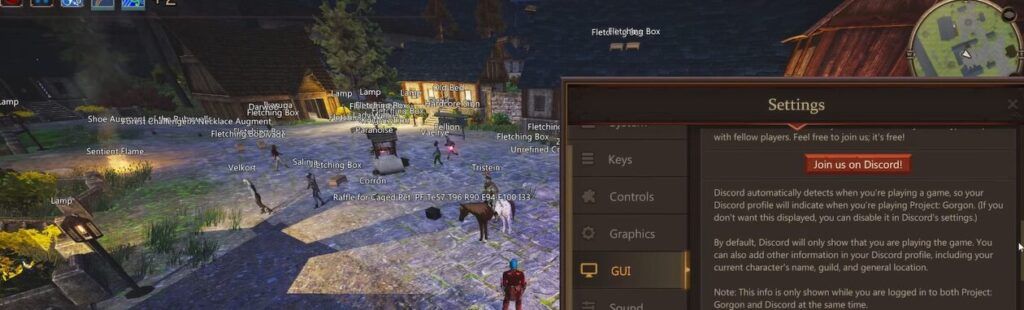
- Auto-Join Voice Chat – Disable if you want privacy when you join any party while playing the game
- Discord Integration – Enable to experience group play in the game.
And there you have it. that is how you can set up the best settings for the best performance in Project Gorgon 2026!! We hope this guide helped you, gamers!
ALSO READ: How to Change Difficulty Settings in-Game in Escape From Ever After
 Andrej