

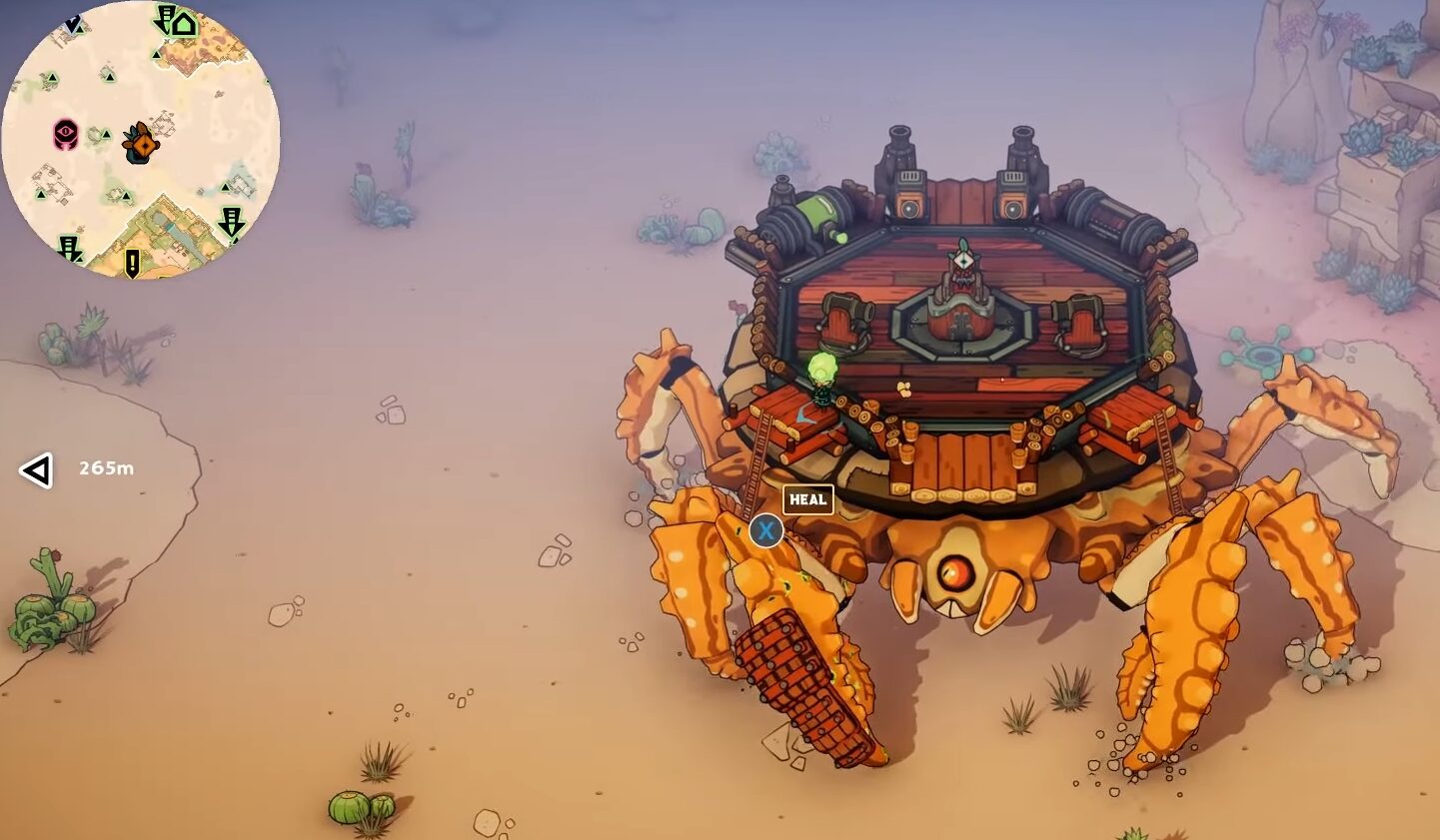
Nothing ruins a Desert raid more than frame drops and constant lagging. If you are wondering how you can increase FPS and Fix Lagging in the game DuneCrawl, you have come to the right place.
Today’s guide will go through all the important PC settings and Tips and Tricks to increase FPS and Fix Lagging in the game DuneCrawl. Let’s get right to it!
How to Increase FPS and Fix Lagging
Best PC Settings
What to Disable
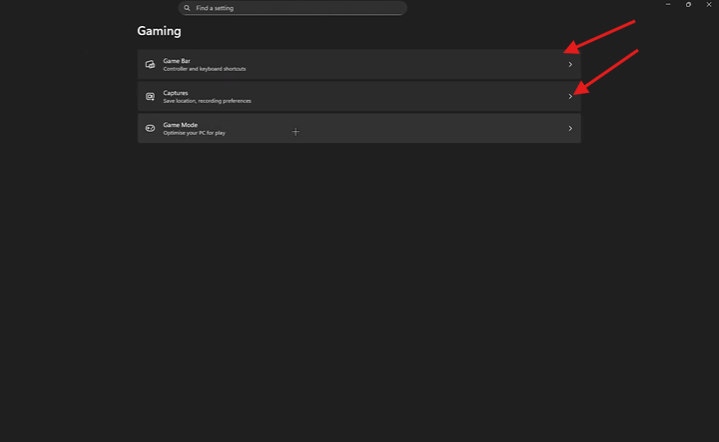
First, you will go to your main PC settings and go to Gaming. You will then disable the Game Bar and Captures
What to Enable
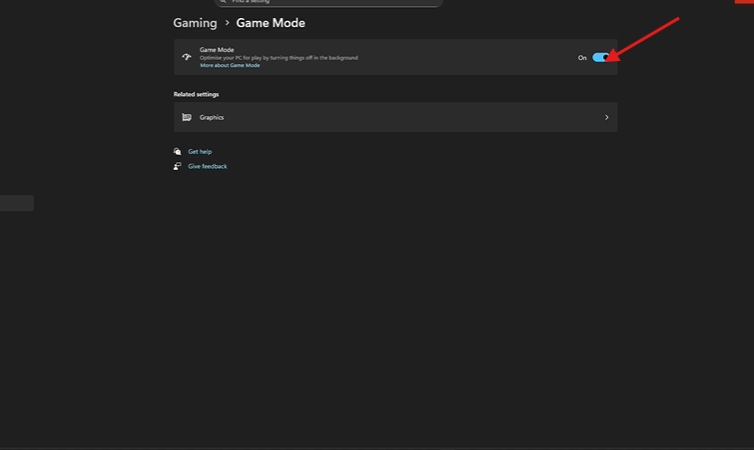
While still in the gaming tab, all you need to do is go into Game Mode and enable it. This will optimize your PC for gaming.
Ultimate Performance Mode
You will then go to your power options and choose Ultimate Performance Mode, but if your PC does not have this power setting, you can choose the High Performance mode.

Task Manager
Disable Automatic Startup Apps
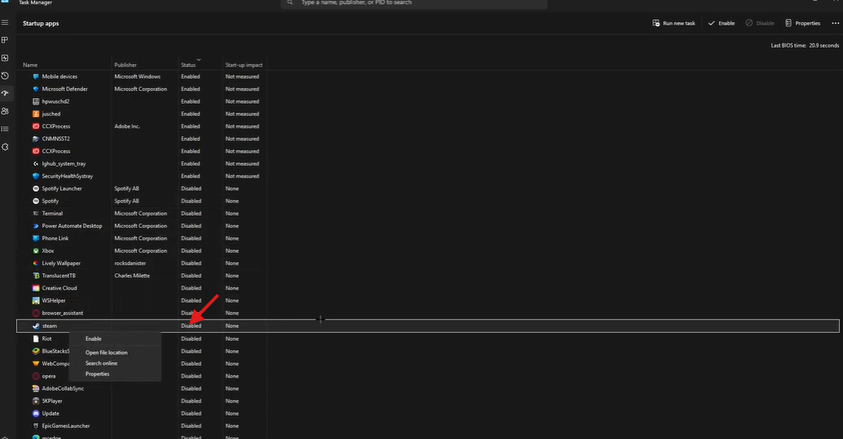
You will then head into task manager and disable the automatic Startup Apps. This means that these apps will only open when clicked and not when the PC turns on.
Realtime Priority
You will then head to the details tab still in Task Manager, select DuneCrawl, and set the priority to Realtime Priority.
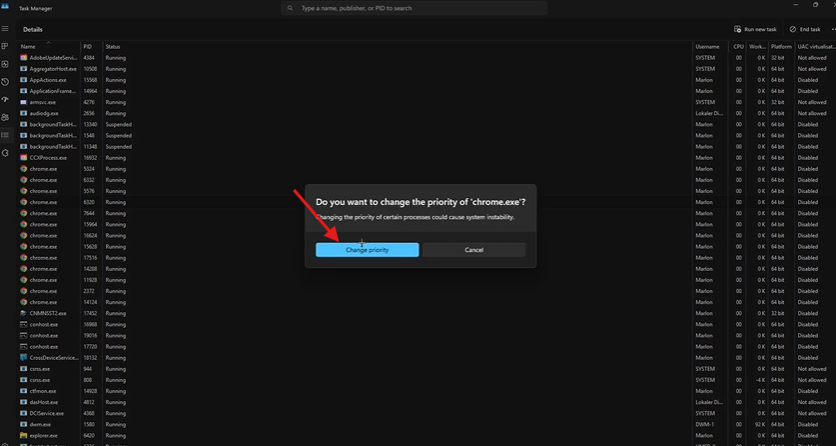
These settings should reduce lag and increase FPS. Happy Gaming!
You can find out more on DuneCrawl HERE.
ALSO READ: DuneCrawl: How to Upgrade your Dune Crawler
 Tafa Mus
 Pritish Samantaray