

Getting Started with Mousify
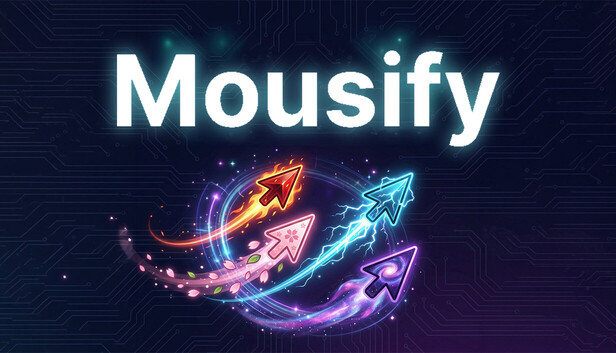
Since its Steam release in May 2026, Mousify has been a big improvement for Windows users. This beast of a tool boasts an array of features that'll make you wonder how you ever managed without it: click effects, physics-driven cursors, animated cursor workshop, holographic trails, and ASMR sounds.
Navigating the Interface: A Beginner’s Guide
Mousify’s main window is divided into sections, each dedicated to a specific feature or setting. The ‘Effects’ tab is where you’ll find customization options like click effects, animations, and ASMR sounds.
It takes time to get used to Mousify’s interface, but don’t be afraid to experiment with different combinations in the ‘Effects’ tab. You can create a truly unique experience.
Customizing Your Cursor: A Deep Dive
The ‘Cursor Library’ section has over 50 pre-made cursors – each with its own set of features and settings. Find one that stands out, or use the ‘Animated Cursor Workshop’ tool to create your own.
When selecting a cursor, pay attention to its physics-driven properties: some will affect how it interacts with the screen, while others might be designed for specific tasks like gaming or graphic design.
For example, the ‘Gaming’ cursor is optimized for fast-paced games and features a unique acceleration curve that allows for precise movements. On the other hand, the ‘Graphic Design’ cursor has a more subtle animation that’s perfect for creative applications.
Unlocking Advanced Features
Mousify’s advanced features are hidden behind complexity. To access holographic trails and screen recording capabilities, navigate to the ‘Settings’ menu and enable them accordingly – but be warned: some of these features may drain your computer’s resources.
For example, holographic trails can add a mesmerizing effect to your cursor movement, but they might also consume more CPU power. Be cautious when enabling such features, especially if you’re running resource-intensive applications in the background.
We recommend starting with the ‘Holographic Trails’ feature and experimenting with different settings to find the perfect balance between visual appeal and performance.
Maximizing Your Mouse Experience: Tips and Tricks
Mousify can elevate your mouse experience significantly. By following this guide, you’ll unlock its full potential and discover new ways to interact with Windows.
To get the most out of Mousify, it’s essential to understand how each feature interacts with others. For instance, combining click effects with animated cursors can create a truly immersive experience. Experiment with different combinations to find your perfect setup.
Don’t be afraid to try new things and push the boundaries of what’s possible with Mousify. With practice and patience, you’ll develop a unique style that sets you apart from others.
Mastering the Animated Cursor Workshop: A Guide to Customization
The ‘Animated Cursor Workshop’ tool is where you’ll unlock the true potential of Mousify’s customization options. With this powerful feature, you can create custom cursors that respond to your movements in unique ways.
When working with the Animated Cursor Workshop, pay attention to the available parameters and settings. You can adjust everything from cursor speed to animation duration, allowing for a high degree of customization.
We recommend starting with simple animations and gradually experimenting with more complex effects. With practice, you’ll develop the skills needed to create truly unique cursors that reflect your personality. To learn more about Mousify’s features and settings, be sure to check out our Advanced Settings Guide.
Real-World Applications of Mousify
Mousify is not just a novelty tool; it has real-world applications that can improve your productivity and creativity. For example, the ‘Graphic Design’ cursor can help you stay focused on intricate details, while the ‘Gaming’ cursor can enhance your gaming experience with precise movements.
With Mousify, you can customize your mouse experience to suit your specific needs. Whether you’re a gamer, graphic designer, or simply someone who wants to add some flair to their computer use, Mousify has something for everyone.
Tips and Tricks for Getting the Most Out of Mousify
Here are some additional tips and tricks to help you get the most out of Mousify:
- Experiment with different cursor shapes and sizes to find what works best for you.
- Use the ‘Animated Cursor Workshop’ tool to create custom cursors that respond to your movements in unique ways.
- Combine click effects with animated cursors to create a truly immersive experience.
We hope this beginner guide has helped you unlock Mousify’s full potential. With practice and patience, you’ll develop a unique style that sets you apart from others and enhances your mouse experience significantly.
✅ Verdict
Don't get overwhelmed by Mousify's possibilities. Start here to unlock its full potential.
 Andrej
 Tafa Mus