


Hell is Us PC Performance: Key Settings for Optimal Gameplay
Hell is Us is a demanding action RPG that requires careful optimization to ensure smooth, responsive gameplay. This guide breaks down the best video, audio, and input settings for PC, helping you balance performance and visual quality.
Whether you're running on a mid-range rig or a high-end system, these recommendations will keep your experience smooth.
Video Settings: Balancing Visuals and Performance

Hell is Us PC is a game that can push even mid-range GPUs to their limits. Start by setting your resolution to match your monitor’s resolution – like 1080p, 1440p or 4K – depending on what your screen supports. Then adjust the quality to Medium or High based on how powerful your system’s.
Turning on AntiAliasing and Vertical Sync can help reduce screen tearing and make the image look cleaner. Keep in mind that both features may drop your frame rate if you’re using a lower-end graphics card. To get performance turn off Post-Processing and Ambient Occlusion unless your GPU is top-tier.
The game uses lighting and particle effects that consume a lot of resources so lowering those settings can help you run the game smoothly. You’ll still get a sense of immersion without overloading your system.
Hell is Us PC Input Configuration: Customizing Controls for Precision
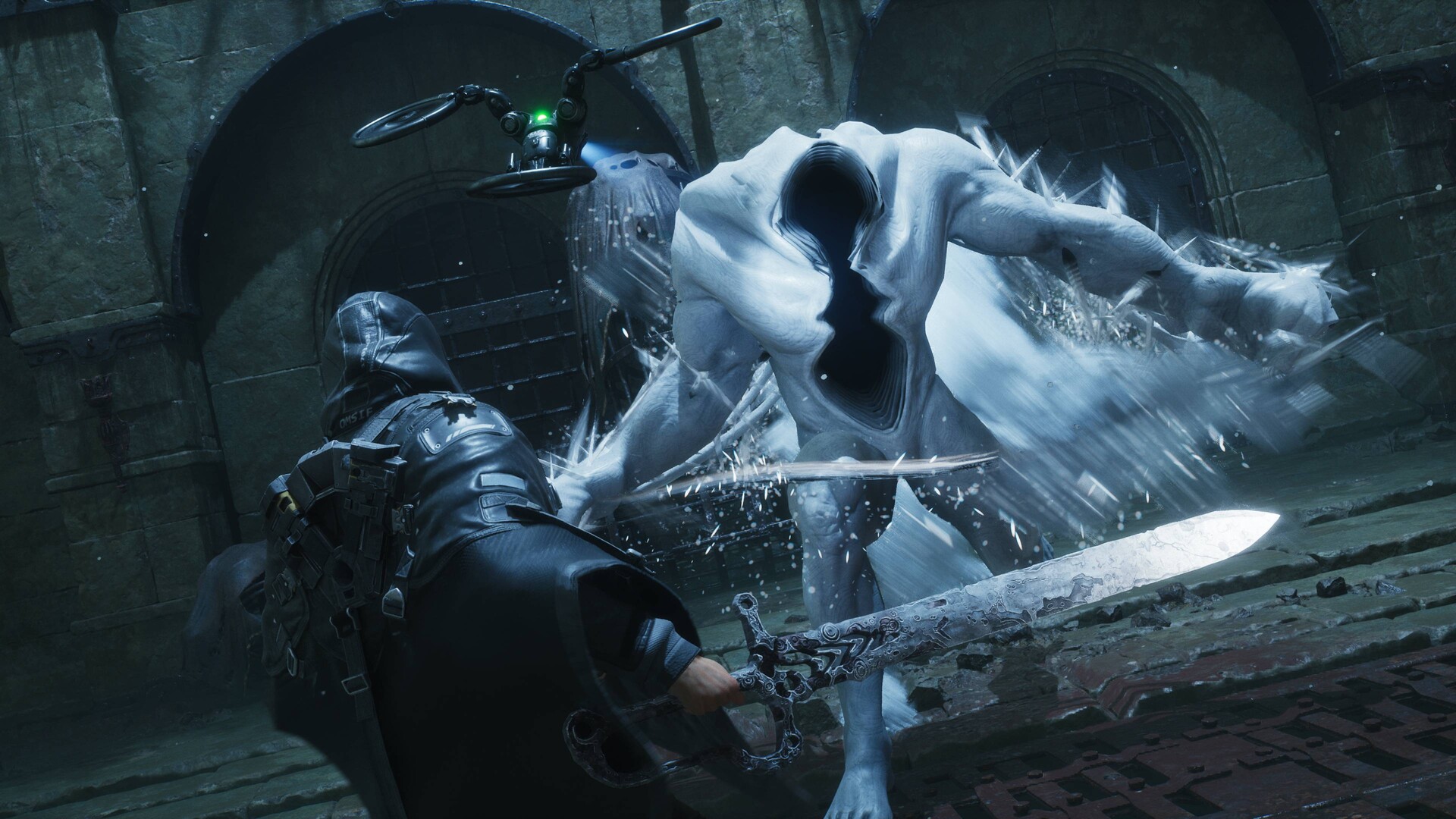
Hell is Us PC works with keyboard and mouse, Xbox and DualSense controllers.
The default key settings may not fit every play style.
I suggest going into the settings menu and changing the controls for things such, as melee attacks, dodges and special abilities so that they match the way you like to play.
If you like playing try turning on Mouse Look and set the sensitivity so it feels right for your reaction speed.
When you use a DualSense controller enable feedback to feel more immersed but turn off Force Feedback if it makes the controls feel slow.
Keyboard players should focus on setting up Key Bindings so you can use abilities fast.
You might also want to turn on Mouse Acceleration to move smoothly during fights.
Audio Optimization: Enhancing Sound Without Overloading Resources
The games audio features, like sound and music that changes with the action can have an effect on how the game runs, especially on systems that are not very powerful. Setting the option called “Sound Quality” to “Medium” can help reduce the amount of work the computers processor has to do while still making sure that voices and sounds in the environment are easy to hear. Disable “Dolby Atmos” or “DTS Headphone X” unless you have a good setup.
In games where you play with people keep “Voice Chat” set to “High” to avoid delays. If you hear the sounds cutting in and out try lowering the “Ambient Sound.” Good audio settings help make sure you don’t miss any sounds when you’re, in hard fights or when you’re looking around in the game world.
System Requirements and Thermal Management
Minimum vs. Recommended Hardware Specs
To run Hell is Us PC smoothly make sure your system meets the recommended specs. You need least an Intel i5-12600K or an AMD Ryzen 5 5600. You also need 16GB of RAM and a dedicated GPU such as the RTX 3060 or RX 6700 XT.
Keep an eye on your GPU and CPU temperatures. Use tools, like MSI Afterburner to check how hot your components get. This helps avoid throttling when playing for periods.
If you notice performance drops think about upgrading your cooling system. You might also want to close background processes to free up resources. The game has resource demands because of its open-world zones and detailed environments.
A stable power supply is important. Without it you could face crashes or slowdowns during gameplay.
Optimal Cooling Solutions
For systems running it on PC using cooling or high-performance air coolers can help keep temperatures under control during long sessions. The system running it on PC needs cooling. Make sure the case you’re using has airflow and think about putting in another fan to help get rid of more heat.
The system running it on PC is sensitive to heat. The way thermal paste is applied can also affect how hot the CPU or GPU gets. The system running it on PC can overheat if not properly cooled.
If you see increases in heat it might be time to put some new thermal paste on. The system running it, on PC requires attention to cooling.
Tips for smooth gameplay
Update drivers on a basis. Make sure game patches are always current to ensure the possible performance.
Download mods from the Steam Workshop that improve performance without affecting the balance of the game.
If your system is end choose frame rate over higher resolution by turning on Performance Mode in the settings.
Always save configuration files so that your custom settings remain after updates or reinstallation of the game.
Use tools like GPU-Z to watch real-time performance metrics and keep an eye on performance to find bottlenecks, in your it setup.
✅ Verdict
Prioritize medium to high settings for visuals while adjusting resolution and texture quality to maintain 60+ FPS. Use the Steam Workshop for custom content and monitor system temperatures to avoid thermal throttling. Stick to the recommended settings for the best balance between performance and immersion.
 Jakeyy
 Tafa Mus